Rivas Lifestyle & Co.
The Rivas Habits Tracker Guide
How to track your habits, build streaks and stay consistent, together. Written for Jose and Jeanette, current as of version 2.0.
Jump to a section
Every screenshot in this guide uses made-up habits and numbers. Yours will look different. The gold numbered dots on the screenshots match the numbered lists beneath them.
| Version | What changed |
|---|---|
| 2.0 | Back up your habits: a button on the Habits page that downloads all your habits and check-offs as a file. It also tries again on its own when the connection returns after a failed save. |
| 1.9 | Checking off a habit no longer jumps the screen back to the top. |
| 1.8 | The loading screen now shows the Rivas R in the ring, like the other apps. |
| 1.7 | Team badges. Pick the habits that count for the team, and earn 25 shared badges for streaks, perfect days, perfect weeks and months, comebacks and totals. The Shared streak is now the Team streak. |
| 1.6 | You can import your history from the Streaks app with its CSV export, including long streaks and badges. |
| 1.5 | The ← Home button now scrolls with the page instead of staying pinned, which fixes blurry text on newer iPhones. |
| 1.4 | Sharper, easier-to-read ← Home button on the phone. |
| 1.3 | The app is now called Habits Tracker, to match the Budget Tracker and Business Tracker. |
| 1.2 | A ← Home button at the top of every phone screen, in the same place as the Budget and Business Trackers. |
| 1.1 | DTM now reads Dropped the Message. Anyone who already had the habit under its old name sees it renamed automatically. |
| 1.0 | The first release. Daily check-offs and habits you tap several times a day, streaks and personal bests, milestone badges, a shared view with Jeanette, SYS and DTM pulled in from the Business Tracker, and reminders. |
01
Getting started
The Habits Tracker lives at rivas-lifestyle.pages.dev/habits, or tap the gold Habits Tracker card on the Rivas home page. It works on a computer and on your phone, and both show the same data.
On the Rivas home page, look under the Sign out button for Habits guide. You can also go straight to rivas-lifestyle.pages.dev/guide/habits. You need to be signed in to open it.
Put it on your iPhone
- Open the link in Safari and sign in if it asks.
- Tap the Share button, then Add to Home Screen.
- Open it from the new icon from then on. This also lets your phone send you reminders (see section 5).
Finding your way around
| Area | What it's for |
|---|---|
| Today | Check off what you've done today and see which streaks need you. |
| Progress | A calendar, your stats and your milestone badges for each habit. |
| Together | Your habits next to Jeanette's (or Jose's), your team streak, and the team trophies. |
| Habits | Add, edit and reorder your habits, and turn on reminders. |
On a computer these are in the dark sidebar, with a gold + New habit button at the bottom. On a phone you get four tabs along the bottom and a round + button for a new habit. At the very top of every phone screen there is a ← Home button. It takes you back to the Rivas home page, and it sits in the same place in the Budget Tracker, the Business Tracker and the Habits Tracker. On a computer, use ← All apps at the top of the sidebar instead.
The first time you open it
Two habits are already there for you: Share your story and Dropped the Message. They come from the Business Tracker (see section 6). Add the habits you want to build from the + button.
Making sure you have the latest version
The version number is at the bottom of the Habits page, like Habits Tracker · v2.0. After an update, refresh once with ⌘ Shift R in Safari on a computer. On the phone, swipe the app away and open it again.
02
Today
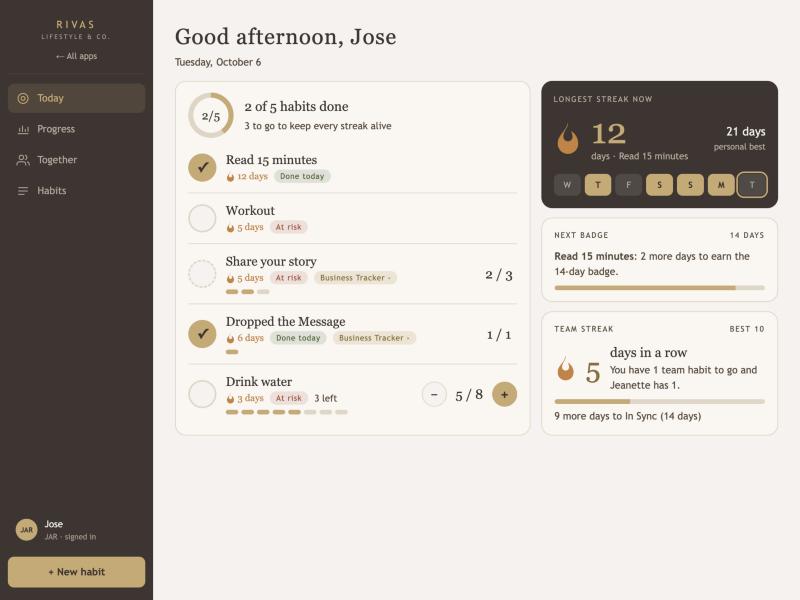
Today is where you spend most of your time. Open it, tap what you've done, and watch the ring fill in.
 1
2
3
4
5
6
7
1
2
3
4
5
6
7
- The ring. How many habits you've finished today, and how many are left to keep every streak alive.
- Check-off habits. Tap the circle when you've done it. Tap again to undo. The flame shows the streak, and the tag says Done today or At risk when it isn't done yet.
- From the Business Tracker. Share your story and Dropped the Message are filled in from the tracker. Tap the tag to open it.
- Habits you do several times. Tap + each time, − to fix a mistake. It shows how many you've done and how many are left, with a small bar that fills toward the goal.
- Longest streak now. Your best current streak, your personal best, and the last seven days. A day is filled in when you finished every habit.
- Next badge. How many more days until your next milestone badge.
- Team streak. Days in a row you and your partner both finished all of your team habits, and who still has some left today. See section 4.
When you finish everything for the day, a short message tells you your streaks are safe until tomorrow. When you beat your personal best, it says so.
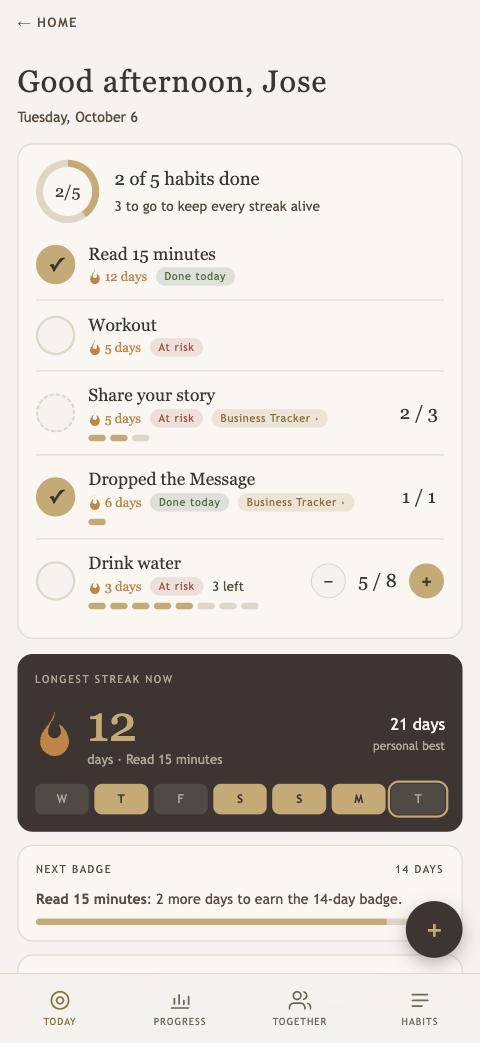
When you earn a badge
The day you hit 7, 14, 30, 60, 100, 200 or 365 days in a row, a celebration pops up.
03
Progress and badges
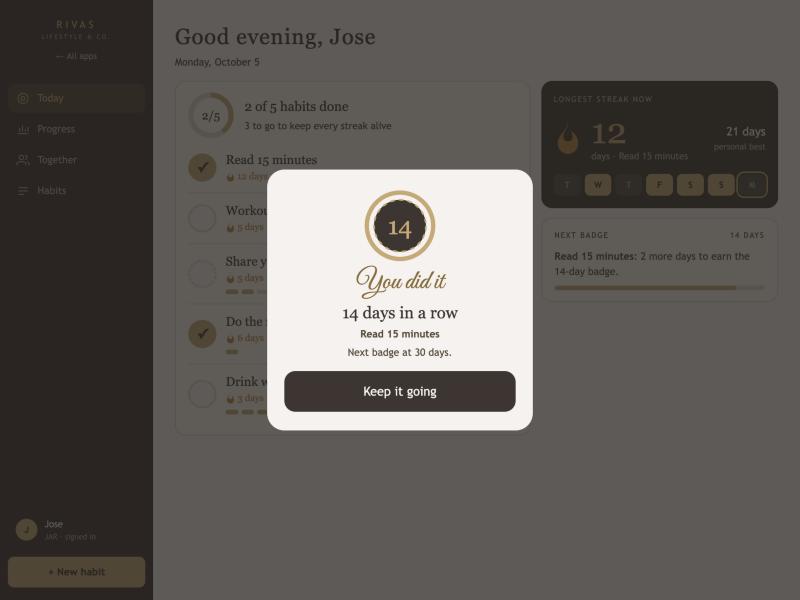
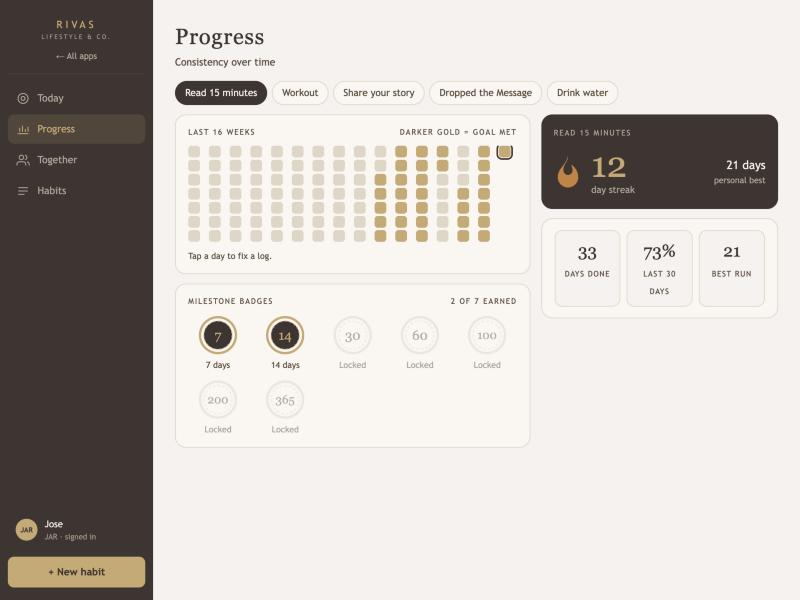
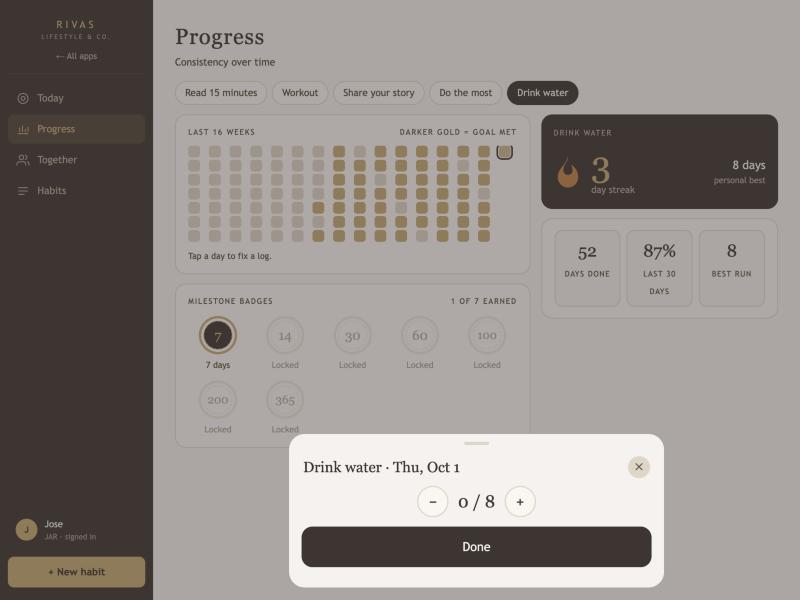
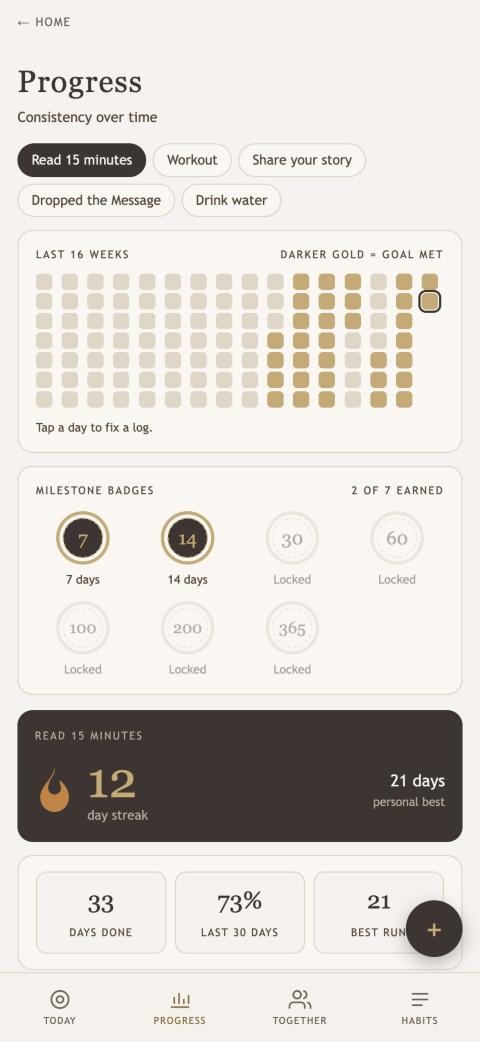
Progress shows how consistent you've been, one habit at a time.
 1
2
3
4
5
1
2
3
4
5
- Habit picker. Choose which habit to look at.
- Calendar. The last 16 weeks, one square per day, with the newest day in the top right and today outlined. A solid gold square means you hit the goal. A paler one means you did some of it.
- Milestone badges. Gold when earned, grey when still locked. They stay earned even if a streak later ends.
- Current streak and personal best. The longest run you've ever had for this habit.
- Stats. The total days you've hit the goal, the percentage of the last 30 days, and your best run.
Fix a day you forgot to log
Tap any square in the calendar to correct that day. For a check-off habit, choose Done or Not done. For a habit you tap several times, use − and + to set the count. The streak updates right away.
For Share your story and Dropped the Message, past days are changed in the Business Tracker instead.
04
Together
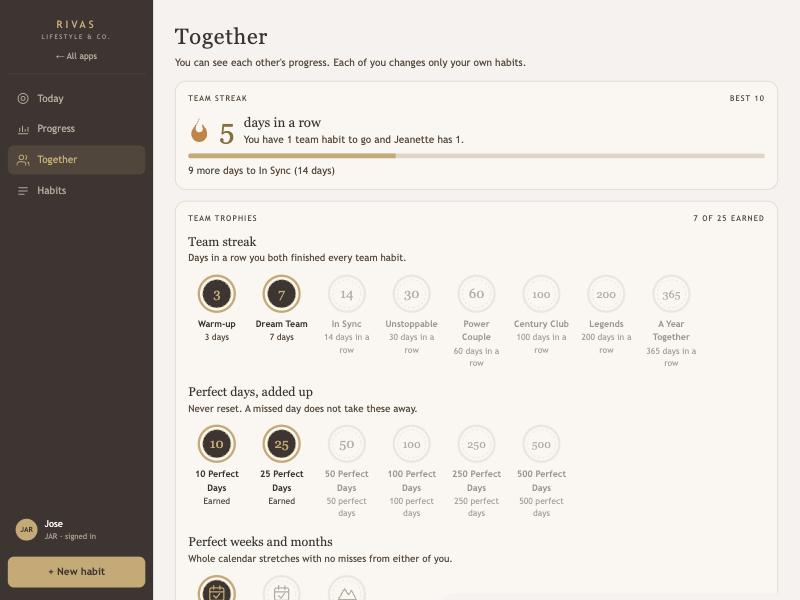
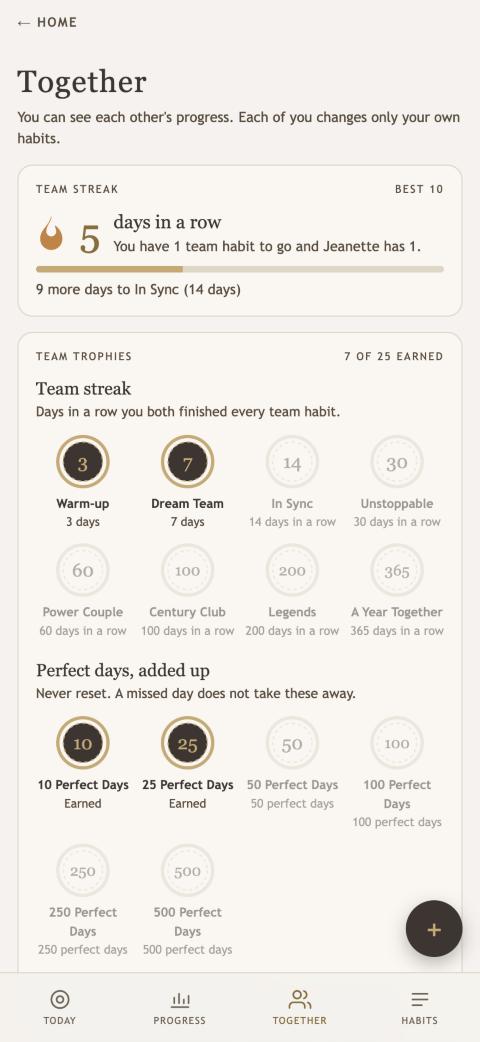
Together puts Jose's and Jeanette's habits side by side so you can cheer each other on. It's also home to the team streak and the team trophies, which you earn together.
Choose your team habits
A perfect day is a day when you both finish every habit you each marked as a team habit. You choose which habits those are. For a business focus, that might be just Share your story and Dropped the Message, which start switched on. Everything else stays off until you turn it on.
- Open the Habits tab and tap Edit on a habit.
- Turn on Counts toward team badges.
- Tap Save changes. A small Team tag appears next to the habit.
Each of you picks your own. Team badges begin once you've both picked at least one. Until then, Together tells you who still needs to pick.
 1
2
3
4
5
1
2
3
4
5
- Team streak. The number of days in a row that you both had a perfect day, and your best ever. It also says who has team habits left today.
- Next team badge. How many more days to the next streak badge you haven't earned.
- Team trophies. All 25 team badges, in five groups, and how many you've earned.
- Earned badge. Gold, with the name and what earned it.
- Locked badge. Grey, with what you need to do to earn it.
 1
2
3
1
2
3
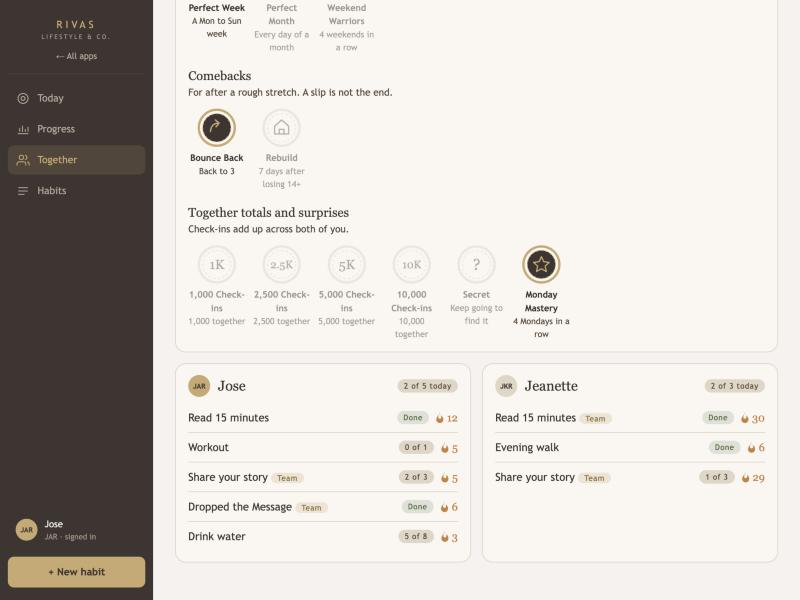
- Secret badges. They show as a question mark until you earn them.
- Your card. Each habit with today's status and its streak. Team habits carry a Team tag.
- Their card. The same for the other person.
You can look at each other's progress, but you can only change your own habits.
The 25 team badges
| Group | Badges | How you earn them |
|---|---|---|
| Team streak | Warm-up, Dream Team, In Sync, Unstoppable, Power Couple, Century Club, Legends, A Year Together | 3, 7, 14, 30, 60, 100, 200 and 365 perfect days in a row. |
| Perfect days, added up | 10, 25, 50, 100, 250 and 500 Perfect Days | That many perfect days in total. These never reset, so a missed day doesn't set you back. |
| Perfect weeks and months | Perfect Week, Perfect Month, Weekend Warriors | Every day of a Monday-to-Sunday week, every day of a calendar month, or both days of four weekends in a row, all as perfect days. |
| Comebacks | Bounce Back, Rebuild | Bounce Back: you reach a 3-day streak again after a streak broke. Rebuild: you reach 7 days again after losing a streak of 14 or more. |
| Together totals and surprises | 1,000, 2,500, 5,000 and 10,000 Check-ins, plus two secret badges | Check-ins count every team habit either of you finished, added up. The secrets are for you to find. |
When you earn one
The next time you open the app, a celebration shows the new team badge. You each see it on your own phone. If you earn several at once, they're shown together.
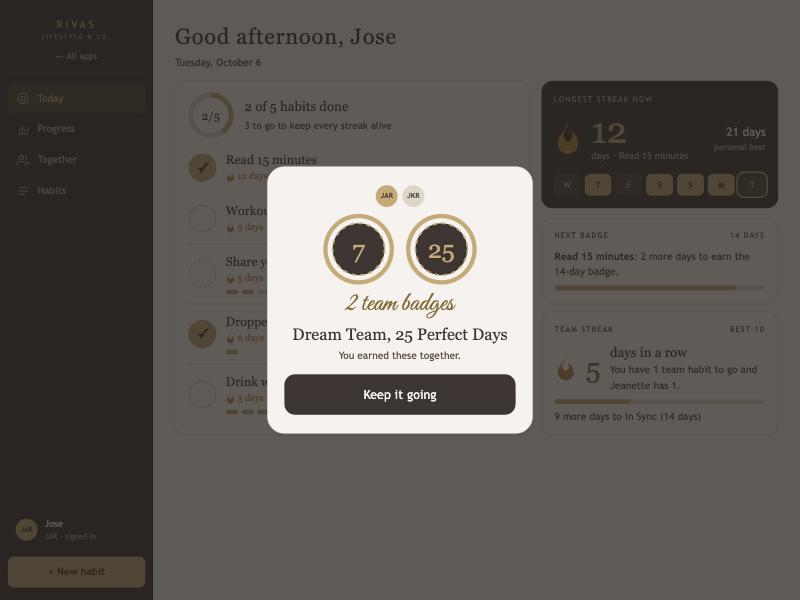
Team badges are worked out from your history, so Streaks history you import counts. The first time, and any time either of you changes your team habits, the app quietly shows the badges you already qualify for without a celebration for each. Changing team habits recounts past days with the new set, so your team streak can jump up or down at that moment.
05
Your habits and reminders
 1
2
3
4
5
6
7
1
2
3
4
5
6
7
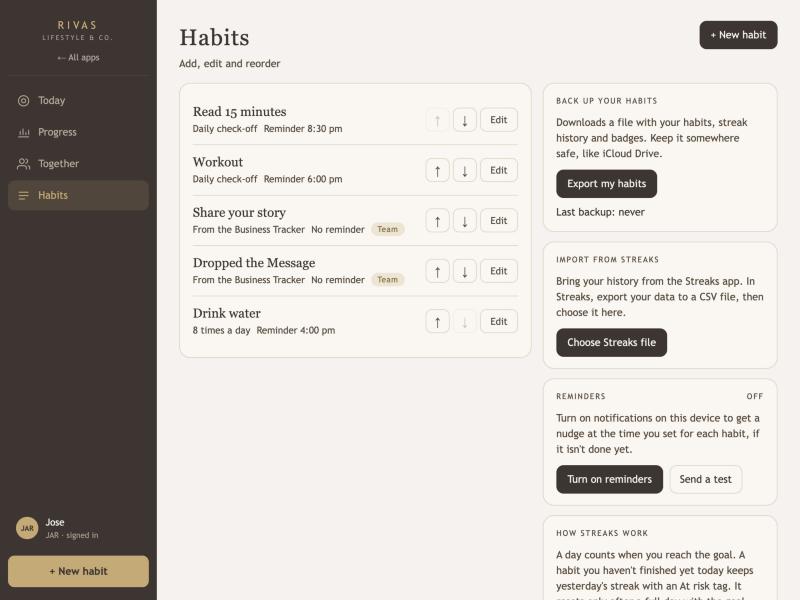
- Your habits. Each one shows how you track it and its reminder time.
- ↑ ↓. Move a habit up or down. This is the order on Today.
- Edit. Rename it, change how it's tracked, set a reminder, archive it or delete it.
- Back up your habits. Downloads a file with all your habits and check-offs. See below.
- Reminders. Shows whether notifications are on for this device.
- Turn on reminders. Asks your device for permission. Do this once on each phone or computer you want reminders on. Send a test checks it works.
- + New habit. Starts a new habit.
Add a habit
 1
2
3
4
5
6
1
2
3
4
5
6
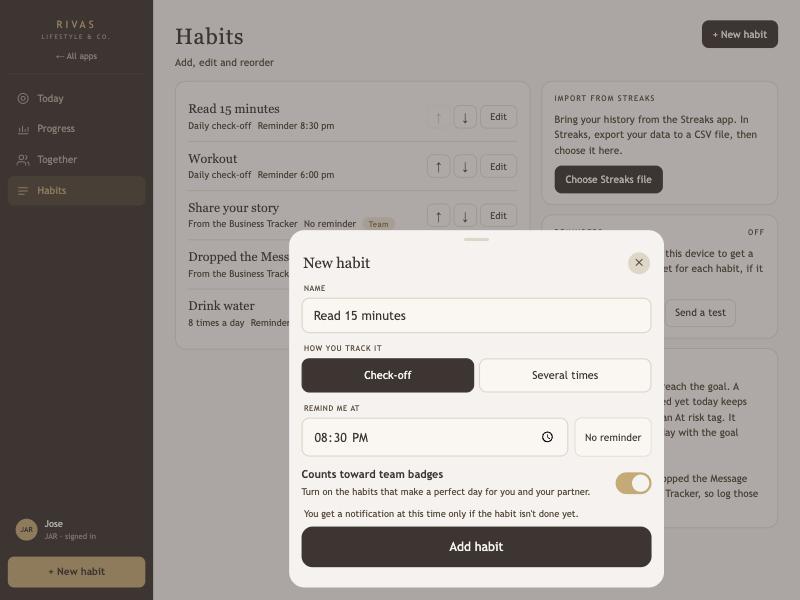
- Name. Something you'll recognize at a glance, like "Read 15 minutes".
- How you track it. Check-off is a simple done or not done. Several times is for habits you do more than once a day. Choose it and a counter appears for how many times a day hits your goal, for example 3 for sharing your story, or 8 for glasses of water.
- Remind me at. Pick a time. If the habit isn't done by then, you get a notification.
- No reminder. Clears the time.
- Counts toward team badges. Turn this on if the habit is part of your team's perfect day. See section 4.
- Add habit. Saves it. Your streak starts the day you finish it.
Reminders
A reminder only arrives if the habit isn't done yet at that time. If you've already finished it, you won't be bothered. The notification says what's left, and if you have a streak going it says how long: for example, Keep your 12-day streak alive. Tapping it opens Habits.
Notifications only work after you've added the Habits Tracker to your Home Screen (see section 1) and tapped Turn on reminders there. If it says Blocked in Settings, allow notifications for the app in your phone's Settings.
Bring in your history from the Streaks app
If you've been tracking a habit in the Streaks app, you can bring the whole history over so your streak and badges carry on from where they were.
- In the Streaks app, export your data as a CSV file and save it where you can find it, such as the Files app on your phone. It's a single file with all your habits in it.
- If you exported on a different device, move the file to the phone or computer you're using for the Habits Tracker, for example with AirDrop or iCloud Drive. Import it while signed in as yourself, because the habits go into your account.
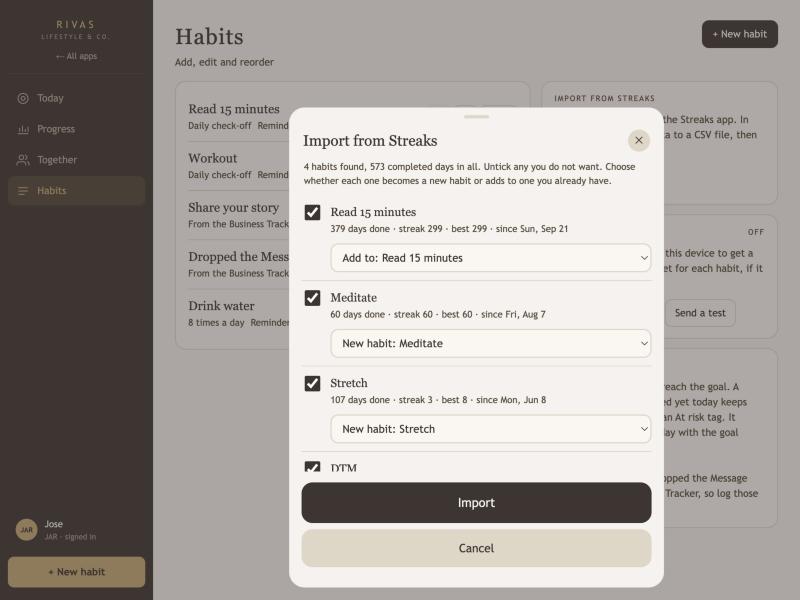
- Open the Habits tab, find the Import from Streaks card, and tap Choose Streaks file. Pick the CSV file.
- You'll see every habit found in the file, with its number of days done, its current streak, its best streak and the date it started.
- Untick any you don't want. For each one, choose what to do with it: New habit creates a habit with that name, and Add to puts the history into a habit you already have. If a name already matches one of your habits, the app picks that one for you.
- Tap Import. A message tells you how many habits and days were added.
What to expect
- Completed days come over. Days marked completed in Streaks, whether by you or automatically, count as done. Missed days stay empty, so a gap in Streaks is still a gap here.
- Your streak is counted the Habits Tracker way. It is the number of days in a row you finished the habit, so it can differ by a day or more from the number Streaks shows. Streaks has extras that don't exist here, such as skipped days and goals like three times a week. Habits you did on a schedule other than daily will show shorter streaks.
- Habits you tap several times a day come in as done on the days they were completed, with the full daily goal filled in.
- Badges you've already earned appear as earned, with no pop-up. The next badge celebrates as normal.
- Dropped the Message and Share your story. If the export has a habit with one of those names, choose Add to and pick the matching habit. The old days are combined with what the Business Tracker records.
- It's safe to import again. Days already in a habit are not repeated, so importing the same file twice makes no duplicates. A newer export only adds what's new.
- Fixing a day afterwards. The Progress calendar shows the last 16 weeks. Tap any square there to correct a recent day.
Back up your habits
Your habits are already saved in the cloud. A backup file is an extra copy that you keep yourself. On the Habits page, tap Export my habits in the Back up your habits card. It downloads a file named like habits_JKR_2026-10-10.json with your habits, every check-off, your streaks and your badges. Save it somewhere safe, like iCloud Drive.
The card shows when you last made one. It turns amber after 30 days. A good habit: back up once a month, and before a big change like importing from Streaks. The date is remembered on the device you used. If you ever need to restore from a file, ask Jose and it's done for you.
Archive or delete
Archive hides a habit from Today but keeps its history and badges, and you can Restore it from the Habits page. Delete removes the habit and its whole history for good, so it asks you to confirm.
06
SYS and DTM
Share your story (SYS) and Dropped the Message (DTM) are the daily counts you already keep in the Business Tracker. The Habits Tracker shows them as habits with their own streaks, so everything you do each day is in one place.
- You log them in the Business Tracker. The Habits Tracker only reads the counts. The little Business Tracker › tag opens it.
- Your daily goals come from there too. Change your SYS or DTM goal in the Business Tracker's Settings and the Habits Tracker follows.
- Each of you sees your own. Jose's counts come from Jose's goals, and Jeanette's from hers.
- You can rename them, reorder them, or archive them like any other habit.
Why not log them here? The two apps keep their data separately so neither can overwrite the other.
07
How streaks work
What counts as a day
A day counts when you reach the goal. For a check-off habit that's one tap. For a habit you do several times, it's the daily goal you set, like 3 of 3.
Streaks are forgiving until midnight
If you haven't finished a habit yet today, it keeps showing yesterday's streak with an At risk tag. The streak only resets when a whole day passes with the goal missed.
Personal best
Your personal best is the longest run you've ever had for a habit. Beat it and the app tells you.
Milestone badges
| Badge | Earned at |
|---|---|
| 7 days | A week in a row |
| 14 days | Two weeks |
| 30 days | A month |
| 60 days | Two months |
| 100 days | 100 in a row |
| 200 days | 200 in a row |
| 365 days | A whole year |
The team streak
On Together and Today, the team streak counts the days in a row that you both finished every team habit you each had that day. Habits that aren't marked as team habits don't affect it. They still count for your own streaks and badges.
08
Troubleshooting
The app looks old or is missing something new
Do a hard refresh: ⌘ Shift R in Safari on a computer, or swipe the app away and reopen it on your phone. Check the version at the bottom of the Habits page.
I tapped a habit but my streak didn't go up
A habit you do several times only counts once you reach its daily goal, for example 3 of 3. Also check that you're looking at today. To fix a past day, tap it in the Progress calendar.
Share your story or Dropped the Message won't change here
Those two are logged in the Business Tracker. Tap the Business Tracker › tag to open it. The Habits Tracker shows the numbers as soon as they change there.
I'm not getting reminders
Open the Habits page and check the Reminders card. It should say On. If it says Off, tap Turn on reminders. On an iPhone, the Habits Tracker must be added to the Home Screen first. Also check that the habit has a reminder time, and remember a reminder is skipped if the habit is already done.
A message says changes are saved on this device
The connection to the cloud wasn't available. Your changes are safe on this device and, since version 2.0, the app tries again by itself when the connection returns. It will sync when it's back. Open the app again with a connection to catch up.
Together says team badges haven't started
Each of you needs at least one team habit. Together shows who still needs to pick. Open the Habits tab, tap Edit on a habit and turn on Counts toward team badges.
My team streak changed after I switched a habit
That's expected. The streak is recounted from your history using whichever habits are team habits right now. If you switch one off, days where only that habit was missed can become perfect days, and the other way around.
I earned a team badge but there was no celebration
The celebration shows the next time the app is open after the badge is earned. Badges that were already earned the first time team badges were set up, or after either of you changed team habits, appear on the shelf quietly.
I deleted a habit by mistake
Deleting can't be undone. Next time, use Archive, which keeps the history and lets you restore the habit.